
Direct answerUse the left virtual joystick for movement, swipe to control the camera, and use the right-side action buttons for shooting, attack, movement actions, and interaction. Keep the mini-map visible, learn the three weapon slots, and practice on-foot and driving controls before changing sensitivity or button settings.
Watch in page
Watch this guide
Use the video for visual context, then follow the written steps, tables, and version notes below.
On this page
Control layout quick reference
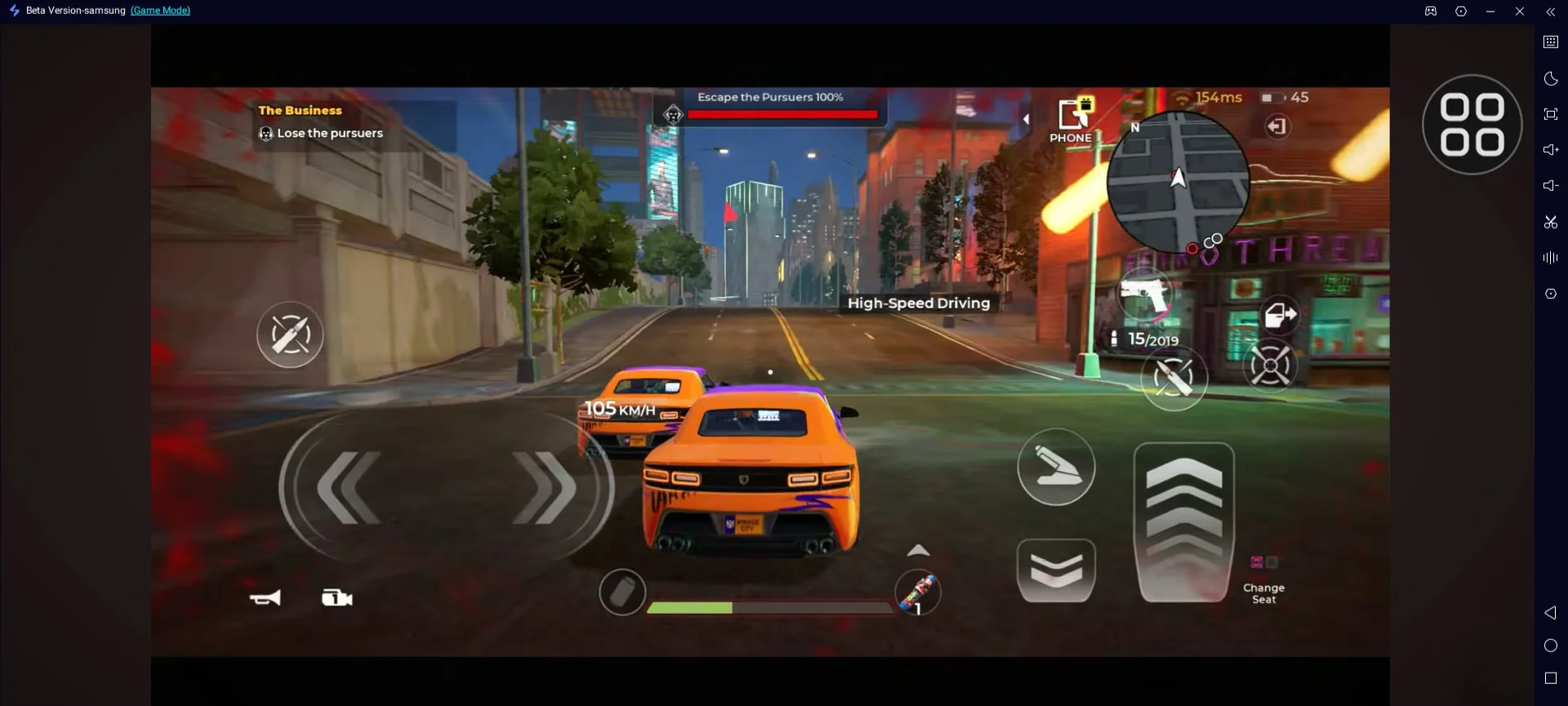
| Interface area | Function | Practical use |
|---|---|---|
| Left virtual joystick | Character movement | Use small inputs near cover and larger inputs while sprinting. |
| Right-side action area | Shoot, attack, jump, crouch or dash, and contextual actions | Button availability can change by situation. |
| Screen swipe | Camera and view direction | Recenter before entering a doorway or vehicle. |
| Mini-map | Objectives, police, shops, apartment, and nearby activity | Check it before driving away from a mission route. |
| Three weapon slots | Switch equipped weapons | Assign different combat ranges rather than duplicate roles. |
On-foot combat controls
- Enter cover before reloading when possible.
- Keep the camera pointed toward likely threats while moving.
- Avoid repeated button presses until the difference between crouch, dash, and context actions is clear.
- Practice swapping weapons without looking away from the action.
Driving controls
Vehicle handling differs by car. Practice braking, cornering, camera recovery, and narrow-road navigation with one familiar vehicle before judging another car.
- Brake before a sharp turn rather than after losing grip.
- Use the mini-map to anticipate intersections and police positions.
- Prioritize predictable handling for mission travel and escapes.
- Do not assume an emulator or controller layout matches the official mobile interface.
Sensitivity and interface setup
- Start with the default values.
- Change only one setting per test.
- Use the same short combat and driving route after each change.
- Restore the previous value if camera control becomes inconsistent.
- Keep important buttons inside comfortable thumb reach without blocking the center view.
Version and availability notes
Available now: The game is built for Android and iOS and includes driving, weapons, missions, heists, and PvP.
May vary by account or version: The exact touch-button arrangement and three-slot weapon interface can vary by platform, screen layout, control state, and game version.
Unlock levels, costs, rewards, conversion rates, and balance values can change by version or region. Follow the current in-game label when it differs.